
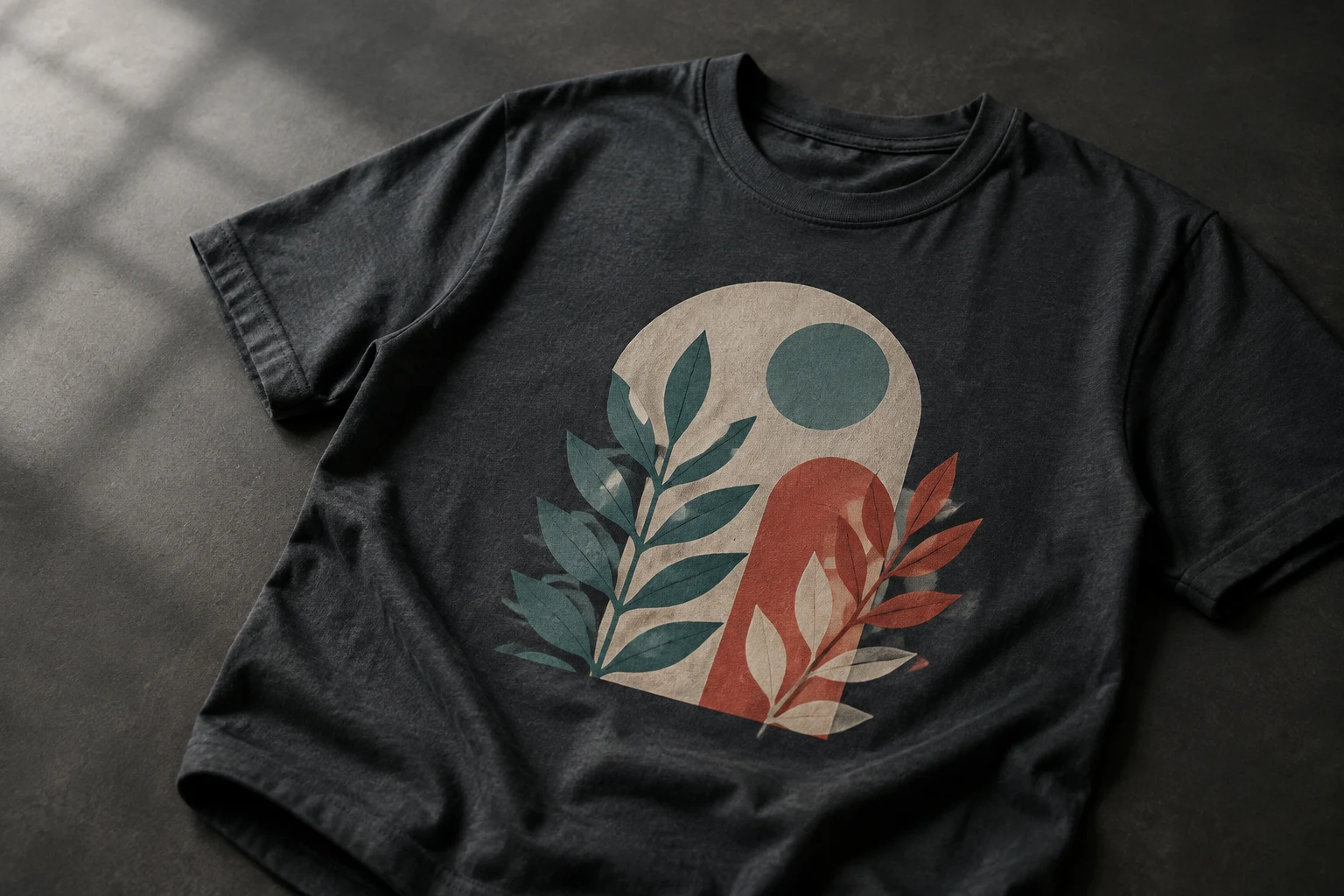
Cover image: AI-generated editorial concept; not a customer project or production proof.
To create a vector file for DTG printing, build or clean up your artwork at the intended print size, prepare the text and shapes, save an editable master, and export the format your printer requests. Vector artwork is useful for logos and lettering, but DTG does not require every design to be vectorized. A transparent PNG is a common submission format, including in Printful’s DTG workflow.
What DTG printing means for your artwork
Direct-to-garment printing uses inkjet technology to apply a digital design directly to a garment. The production process includes appropriate ink, garment preparation and heat curing. Brother’s DTG overview explains how its printers use white and CMYK inks to reproduce artwork on fabric.
Your editable source file and the file submitted for printing may be different. Keep vector shapes for artwork that needs resizing or editing, while retaining photographs as sufficiently detailed raster images. Printing a photograph does not automatically require tracing it into shapes.
Confirm the printer’s requirements first
Before opening Illustrator, obtain the specifications for the exact garment and print location. For buyers working with suppliers in the US, Canada or UK, include both inches and millimetres when confirming dimensions to avoid unit confusion.
Detail to confirm | What to ask your printer |
|---|---|
Print dimensions | What is the maximum area for this garment, size and location? |
Submission format | Do you need PNG, or can you accept a vector file? |
Color profile | Which RGB or CMYK profile should the supplied file use? |
Raster resolution | What pixel dimensions or resolution are required at the final size? |
Garment and ink | How will the fabric color, composition and white ink affect this design? |
Placement | Should the file include a full template canvas or tightly cropped artwork? |
Use the supplier’s product template where available. Follow its safe areas and remove guide layers before export. Printful, for example, provides product-specific dimensions and resolution requirements in its print-file guidance.
Do not automatically add the 0.125-inch trimming bleed used in some paper-print workflows. Ask whether the garment template requires bleed or additional margins, and follow that template.
Create the artwork in Adobe Illustrator
1. Set up the document at the intended size
Create an artboard matching the agreed print canvas. Record the dimensions of the artwork itself as well: empty space around a design can make its visible print smaller than expected.
Choose the printer’s requested color setup. CMYK is not a universal DTG submission requirement. Printful requests sRGB IEC61966-2.1 and handles conversion for printing. That is a requirement of its workflow, not a reason to override another printer’s instructions. See Printful’s color and file recommendations.
2. Build shapes or trace suitable artwork
Use existing vector artwork when available. For a raster logo or simple illustration, Illustrator’s Image Trace can provide a starting point:
Place and select the source image.
Open Window > Image Trace.
Choose a preset suited to the artwork and preview the result.
Adjust the tracing settings to preserve the intended shapes.
Expand the result into editable paths, then inspect and clean it up.
Adobe documents this process in its Image Trace guide.
Check letter shapes, corners, holes and unwanted background objects. Treat the trace as an interpretation of the source; compare it carefully with the original. If tracing changes the design too much, redraw the affected elements or obtain a better source image.
3. Prepare text and organize the file
Proofread before converting text. Save a master with editable lettering, then make a delivery copy if outlined text is needed. In Illustrator, select the text and choose Type > Create Outlines. Outlining preserves letter shapes without relying on the recipient having the font, but removes normal text editing. See Adobe’s font-vectorization instructions.
Group related elements and name layers clearly. Keep the design, garment-color preview and template guides separate so that preview backgrounds are easy to exclude from the final export.
4. Check raster detail at the final print size
Vector paths can be resized, but placed photographs and raster effects still need adequate resolution. Check these elements separately.
PPI describes pixels per inch at a given output size; DPI describes printer dots per inch. Suppliers often use “DPI” in upload requirements, so confirm the actual pixel dimensions they need.
For example, if the printer requests 300 PPI:
Final print size | Required pixel dimensions |
|---|---|
10 × 12 inches, or 254 × 304.8 mm | 3,000 × 3,600 pixels |
12 × 16 inches, or 304.8 × 406.4 mm | 3,600 × 4,800 pixels |
The calculation is inches multiplied by PPI. Changing a resolution label alone does not add missing image detail. Printful’s file preparation guidance recommends checking resolution against actual print dimensions and avoiding enlargement of small source images.
5. Save the master and export the delivery file
Keep an editable AI master. If the printer accepts vector artwork, supply its requested format and confirm that any placed images are included correctly. Saving an image inside an AI or PDF document does not itself trace that image into vector paths.
For a requested PNG delivery, use File > Export > Export As, choose PNG, and use the artboard when its dimensions define the required canvas. Set the requested resolution and select Transparent for the background when the garment should show through. Adobe explains the resolution, anti-aliasing and background settings in its Illustrator export documentation.
Reopen the exported file. Check pixel dimensions, edges, cropping and transparency. Inspect it against both light and dark preview backgrounds to catch stray pixels or accidental white shapes.
Adjust the design for fabric and garment color
Small lettering and fine lines can lose clarity on textured fabric. Judge them at the intended physical size and ask the printer about minimum detail limits. There is no single font size that guarantees readable results across all typefaces and garments.
Check contrast against the actual garment color. A white underbase may help colors show on dark fabric, while partially transparent shadows and fades can behave differently from their screen preview. Ask the printer to review these effects before production. Printful’s artwork guidance covers these detail and transparency limitations.
Cotton is a common DTG choice because of its compatibility with water-based garment inks. Brother’s substrate guidance explains how cotton, blends and pretreatment influence results in its workflows. Confirm that your supplier has tested the specific blank, especially for polyester blends.
Treat bright neon screen colors as a discussion point with the printer. Standard process inks may reproduce them less vividly, and a color-profile choice cannot guarantee an exact screen-to-fabric match. Printful explains these color limitations.
Review a sample before approving production
Request a sample using the intended garment, color, artwork size and print location. Examine the smallest text, edge definition, color balance and placement. If wash performance matters to your project, assess the sample after laundering according to the garment’s care instructions.
Send the printer the final export with a short written brief naming the blank, print dimensions, placement and any critical colors. Label mockups as placement references so they are not mistaken for production artwork.
If a logo needs rebuilding before this workflow, explore DigitEMB’s vector conversion services. Include the DTG printer’s specifications when requesting artwork preparation.
Frequently asked questions
Is PNG a vector file?
No. PNG is a raster format. It can still be the correct DTG delivery format; keep the editable vector master separately. Adobe’s export guide describes PNG resolution and transparency settings.
Should every DTG design be converted to vector?
No. Vector preparation is useful for editable logos, lettering and shapes. A photograph can remain raster artwork when it meets the printer’s size and resolution requirements. Printful accepts raster files for its DTG workflow.
Should I send RGB or CMYK?
Send the profile your printer specifies. For example, Printful requests sRGB, even though its production process converts colors for printing.
Will outlining text make tiny lettering print clearly?
Outlining addresses font compatibility. It does not change the physical size or thickness of the letters. Enlarge or simplify delicate lettering where needed and confirm it with a garment sample.
Practical details for How to Create a Vector File for DTG Printing
Vector artwork is built from editable paths rather than a fixed grid of pixels. The clearest result starts with a specific intended use, because a file prepared for print, cutting and embroidery may need different checks.
Work through these points in order and keep the answers with the artwork or production request. A short written brief makes it easier to compare a proof with the intended result, ask a useful follow-up question and avoid relying on assumptions made from a screen image alone.
The aim is not to add unnecessary steps. It is to identify the choices that change the final result before work begins. If a requirement is unknown, flag it for confirmation rather than guessing; that keeps the approval process focused on the design, material and use that apply to this particular project. Save the approved brief with the project files for future reorders or revisions.
Start with the best source
Provide the largest, clearest original you have and include any brand colours, fonts or reference files. A small or blurry image can still be traced, but missing edges and lettering need careful confirmation.
Define the final use
Say whether the artwork is for print, cutting, screen printing, embroidery reference or a digital asset. This tells the artist which details, colour separations and file formats matter most.
Review paths, text and colour
Before using the finished file, check that lettering is correct, shapes are closed where required and colours match the approved artwork. Keep a master editable file as well as the delivery format used by production.
Quick questions to check before you proceed
Is a vector file the same as an embroidery file?
No. A vector is editable artwork; an embroidery file contains stitch instructions. Vector art can be useful source material for digitizing, but it still needs to be digitized for machine embroidery.
Can a blurry logo be converted?
Often, yes, but the result depends on what can be verified. Supply a clearer reference, font name or brand guide whenever possible.
Which details need approval?
Check spelling, line weight, enclosed spaces, colour choices and the shape of any logo elements before the file goes to print or production.